Open up PADS4 CTRL Center. (Quick reference: http://localhost:portnumber) you are hosting your PADS4 server on. You can find these properties within the PADS4 Foundation Configuration Tool.
When the portal is opened, PADS4 Log In page will be shown.
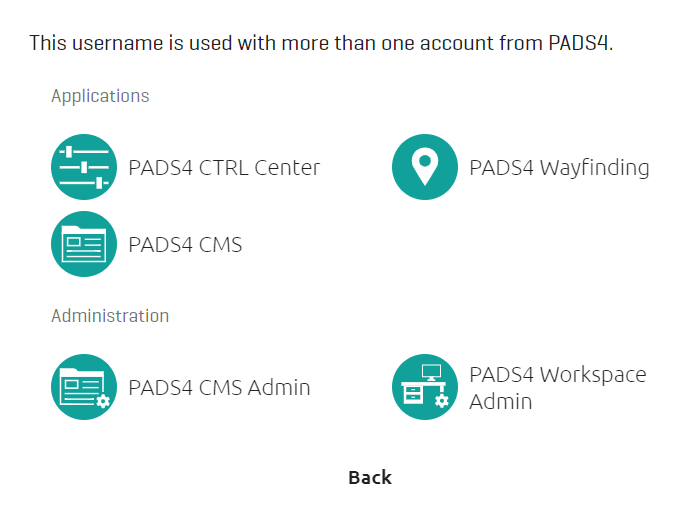
After logging in with your administrator account, you can select multiple modules after you have entered your credentials. Select the module you want to work in (CTRL Center / PADS4 CMS / PADS4 Workspace).
Note: when first booting up, your current administrator account within PADS4 needs to be assigned a PADS4 CMS / PADS4 Workspace license. After the license is assigned (in PADS4 System Management), you will be able to see the screenshot you see above.
When you have permissions for more than one of above apps, they will be shown after the credentials are specified. Select which app you want from the list of available apps. Let's login to the PADS4 CMS Admin section, and you can start setting up your first users, profiles, calendar plugins and more.